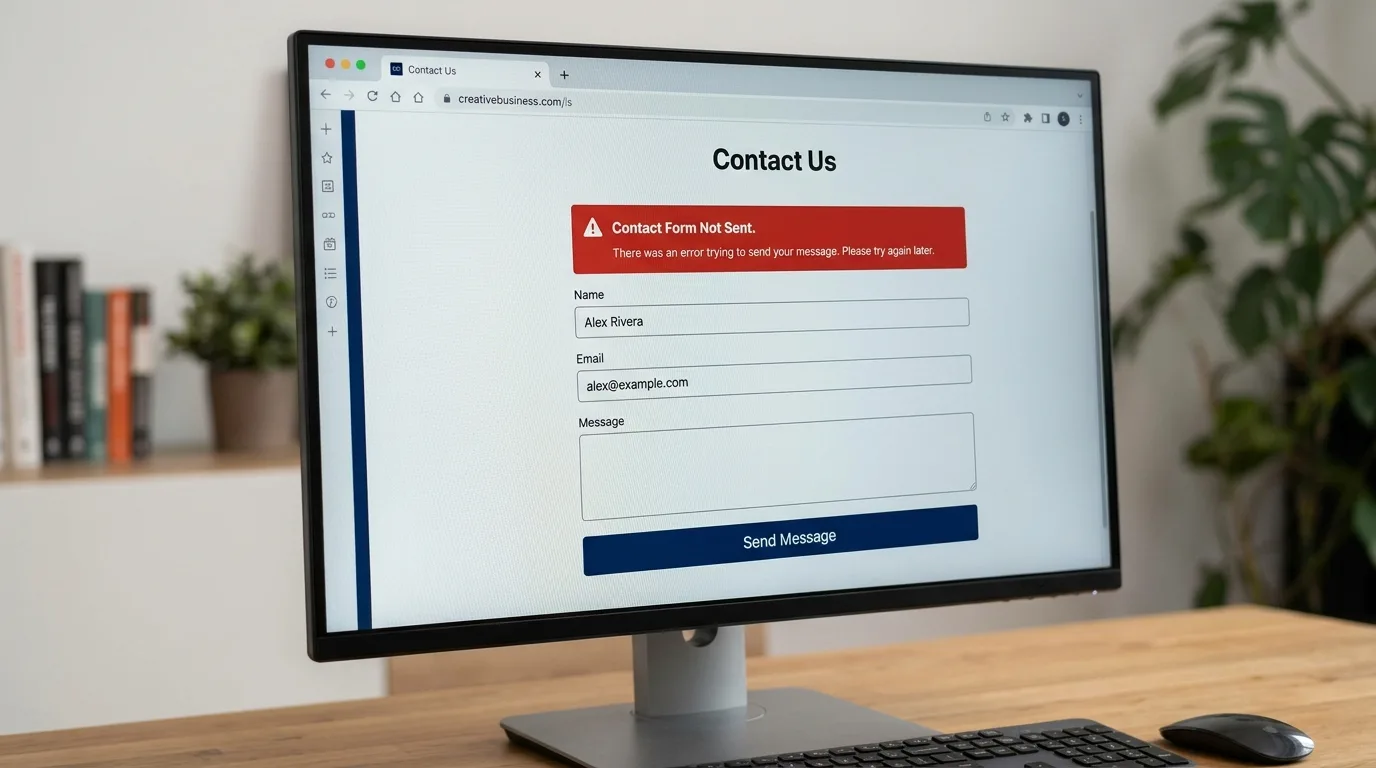
A customer fills out your website's contact form and clicks Send. The form says Message sent successfully—but nothing arrives in your business inbox.
If your website generates sales leads, appointment requests or quotation enquiries, this problem can cost you real business opportunities.
The most important thing to understand is that a successful form submission does not always mean the notification email reached your inbox.
Here's a practical way to identify where the problem happens and fix it.
Step 1: Run a Proper Contact Form Test
Don't start by installing several plugins at once. First, confirm the symptoms.
- Open your website in a private browser window.
- Submit your contact form using an email address you can access.
- Use a distinctive subject such as Website Form Test 12 Nov.
- Check whether the form displays a success or error message.
- Check your business inbox, spam folder and any mail filters.
- Confirm that the form is configured to notify the correct address.
If possible, send a second test from another device or connection.
Tip: Keep a record of the time, recipient and result of each test. That makes support requests more useful.
Step 2: Check the Form's Notification Settings
Contact form plugins have their own mail settings. The exact labels differ among Contact Form 7, WPForms, Fluent Forms and other tools.
Inspect these fields:
- To: Is this the correct business email address?
- From: Does the sender address belong to a domain your sending service is authorised to use?
- Reply-To: Does this refer to the customer's submitted email, if that is how your form works?
- Subject: Does it make enquiries easy to identify?
- Conditional rules: Could a setting prevent some notifications?
A frequent mistake is using the visitor's email address as the From address. Mail systems may reject or distrust a message that claims to come from a domain your website isn't authorised to send for.
A better pattern is:
- From: `website@yourdomain.com`
- Reply-To: The customer's email captured in the form
This lets you click Reply without misrepresenting the sender domain.
Step 3: Understand Why WordPress Email Can Fail
WordPress commonly sends messages through its `wp_mail()` function. Depending on your setup, the underlying delivery method may not be configured for dependable outgoing mail.
Even if WordPress reports that it passed the message to the mail system, the receiving service may still reject, quarantine or classify the email as spam.
Common causes include:
- Incorrect sender information
- Missing email authentication records
- Misconfigured SMTP or email-provider credentials
- Blocked outgoing connections
- Spam filtering
- A plugin conflict
- Errors at the email service provider
This is why simply reinstalling your form plugin may not solve the issue.
Step 4: Configure an Authenticated Sending Service
One widely used approach is to connect WordPress to a reputable email-sending service using an SMTP or supported API integration.
For example, WP Mail SMTP is a WordPress plugin that can route WordPress messages through a configured mail provider.
The broad steps are:
- Check whether your website already uses an email-delivery plugin or service.
- Choose an appropriate sending provider for your business.
- Install and activate a compatible SMTP or email integration plugin, if required.
- Follow its setup wizard or provider-specific instructions.
- Configure the authorised sending domain and sender address.
- Send a test email from the plugin's testing facility, where available.
Important: Don't install multiple mail-routing plugins without a clear reason. They may compete to control outgoing email.
Also, never paste API keys or mailbox passwords into public support chats, screenshots or blog comments.
Step 5: Check SPF, DKIM and DMARC
Email authentication helps receiving servers evaluate whether your messages are legitimate.
The three commonly discussed records are:
- SPF: Identifies mail servers authorised to send for a domain.
- DKIM: Adds a cryptographic signature so receivers can validate the message.
- DMARC: Defines how receivers should handle messages that fail relevant authentication checks and can provide reporting.
Your email provider should give you the exact DNS records to add. Use those values rather than copying another company's example records.
Avoid creating multiple conflicting SPF TXT records for the same domain. If several services send email for your business, they normally need to be accounted for within a properly configured policy.
After editing DNS, allow time for changes to propagate and retest sending.
Step 6: Test the Form and the Sending System Separately
Two different tests reveal two different things.
Test A: Send an email using your SMTP plugin. If that fails, investigate the mail provider, credentials, DNS and connectivity.
Test B: Submit the website contact form. If SMTP works but the contact form doesn't, inspect the form's notifications, validation and plugin configuration.
This separation prevents you from spending hours changing DNS when the actual problem is a disabled notification setting.
If the plugin supports safe diagnostic logging, use it to identify whether sending was attempted and what error was reported. Protect logs because they may contain personal information.
Step 7: Prevent Enquiries from Being Lost
Email should not be the only place a business enquiry exists.
Depending on your contact-form plugin and privacy obligations, consider secure submission storage in WordPress or a trusted CRM.
Good practices include:
- Storing submissions in an access-controlled system.
- Sending notifications to a monitored address.
- Testing forms after plugin or hosting changes.
- Limiting who can view customer details.
- Defining how long customer information should be retained.
If your form stores messages, a failed email notification need not mean the enquiry is lost.
What If Email Works but Form Messages Go to Spam?
Check the sender domain, SPF, DKIM and DMARC settings. Also review your email provider's spam filtering, message content and whether the sender has a trustworthy sending history.
Do not rely on adding URGENT!!! to every subject line. Fix authentication and configuration first.
Frequently Asked Questions
Does the message “sent successfully” guarantee delivery?
No. It may mean the form completed its sending step, not that the recipient's mail server accepted the message into the inbox.
Do I need an email account on the same hosting package?
Not necessarily. WordPress can use a supported external email provider, as long as your sending configuration is correct.
Can SMTP solve all email delivery problems?
No. It improves the sending setup, but recipient filtering, invalid addresses and DNS authentication issues can still affect delivery.
Why do password-reset emails also fail?
Password-reset notifications and contact form notifications may rely on the same underlying WordPress mail configuration.
Final Thoughts
A contact form that looks successful but silently drops notifications can hurt a small business. Test the form, verify the notification recipient and sender, configure an authenticated email service and keep a secure record of enquiries when appropriate.
If you're building or rebuilding your WordPress website, choose a hosting package that matches your traffic, application and support needs. Explore Intek Host WordPress Hosting.
Further reading: WP Mail SMTP plugin documentation on WordPress.org.