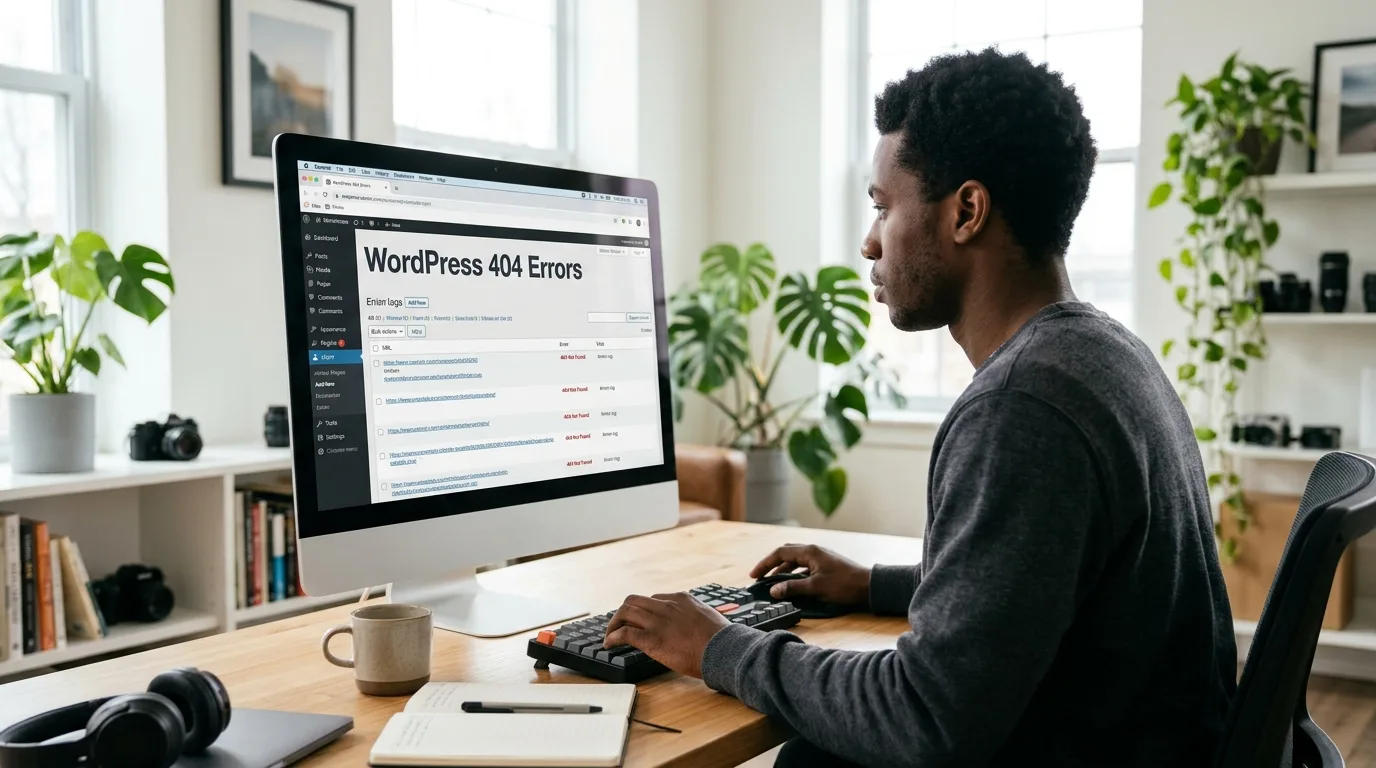
You open your WordPress homepage and everything looks normal. Then you click About Us, Services, or a blog post—and get 404 Not Found.
This is one of the most frustrating WordPress problems because the website appears to be working, yet visitors cannot reach important pages. A customer who clicks a broken product or service link may never return.
The good news: if the homepage works but internal links do not, you may have a permalink or server rewrite problem rather than missing content. Here's how to troubleshoot it in a sensible order.
First, Find Out What Is Actually Broken
Before changing settings, check a few URLs in a private browser window:
- Your homepage: `https://example.com/`
- A normal page: `https://example.com/about/`
- A blog post: `https://example.com/sample-post/`
- Your WordPress login: `https://example.com/wp-admin/`
What the results mean:
- Only one page fails: The page may be unpublished, deleted or using a changed URL.
- Most pages fail, but the homepage works: Permalink or rewrite rules are strong suspects.
- Everything fails: Investigate hosting, DNS, the server configuration or a wider outage first.
- Only links from search engines fail: The indexed URLs may be outdated or redirected incorrectly.
This simple test can save you from troubleshooting the wrong issue.
Step 1: Check That the Page Still Exists
Log in to your WordPress dashboard and open Pages > All Pages, or Posts > All Posts for an article.
Search for the page title, then check:
- Is it Published, or has it been moved to Draft or Trash?
- Does it have the URL slug you expected?
- Does the page open using View from the dashboard?
- Did someone replace it with a new page?
For example, a page called Our Services might now use `/what-we-do/` rather than `/services/`.
If its URL changed, update menu links and create an appropriate permanent redirect from the old URL to the new one. Don't create a redirect loop or redirect unrelated pages to the homepage.
Step 2: Refresh WordPress Permalink Rules
This is a useful early fix when many internal URLs suddenly show 404 errors.
- Sign in to WordPress.
- Open Settings > Permalinks.
- Note your current permalink structure.
- Click Save Changes without changing the structure.
- Open a previously broken page in a fresh browser tab.
Saving the settings asks WordPress to refresh its permalink configuration. On compatible servers, this can resolve the issue.
Important: Do not switch your established site to a completely different permalink format simply to experiment. Changing public URLs can break existing links and affect search traffic.
Step 3: Check for Server Rewrite Problems
Readable WordPress URLs depend on the web server being configured to route requests correctly.
On Apache-based environments, permalink handling may involve the `.htaccess` file and the `mod_rewrite` module. On Nginx, rules are managed in the server configuration instead.
If saving permalinks did not help:
- Check whether the website was recently moved to another hosting package.
- Confirm that the WordPress directory and website document root are correct.
- Ask your hosting provider whether rewrite rules are working for the site.
- Review server error logs for clues.
Don't overwrite `.htaccess` blindly. It may contain security, redirect, caching or other important settings. Back it up before any change, and avoid copying Apache rules into an Nginx-only setup.
Step 4: Check Plugins and Redirect Settings
SEO, caching, security and redirect plugins can affect how URLs behave.
If the problem started after a plugin update or configuration change:
- Make a backup.
- Review recently changed plugins.
- Temporarily deactivate the suspected plugin if doing so is safe.
- Test the same URL again.
- Reactivate or replace the plugin after identifying the cause.
Be especially careful on online stores or membership sites, where disabling a plugin may interrupt payments or account access.
Review any rules that redirect `/old-page/` to another URL. A rule that points to the wrong location can make a valid page appear missing.
Step 5: Clear the Right Cache
Sometimes WordPress has been fixed but visitors still see an older cached response.
Try clearing:
- Your browser cache, or testing in a private window.
- The WordPress caching plugin cache, if one is used.
- Your hosting cache, where applicable.
- CDN cache for affected URLs, if you use a CDN.
Purge selectively where possible; repeatedly clearing every cache is not a substitute for finding the underlying problem.
Step 6: Repair Links After a Site Migration
404 errors sometimes appear after moving WordPress to a new domain, changing its installation folder or importing content.
Check that:
- Settings > General contains the correct WordPress Address and Site Address.
- Menus link to the current website URLs.
- Internal content links do not point to an old domain.
- The destination hosting server has compatible rewrite settings.
- Old public URLs redirect to the most relevant new URLs.
If you need to update URLs stored inside WordPress content or settings, use a WordPress-aware migration tool or professional assistance rather than an unsafe database-wide text replacement. WordPress stores some data in formats that simple replacements can damage.
Step 7: Handle Genuine Missing Pages Correctly
Not every 404 should be eliminated. Sometimes a deleted page really is gone.
Use these rules:
- If the page moved, create a 301 redirect to its new relevant address.
- If you have a genuinely equivalent replacement, redirect to it.
- If the content is permanently gone and has no replacement, a proper 404 or 410 response can be appropriate.
- Fix navigation menus and important internal links so visitors do not keep reaching missing pages.
Avoid sending every nonexistent URL to your homepage. That creates a confusing experience and does not restore the missing content.
Quick Troubleshooting Checklist
Before contacting support, collect these details:
- One working URL and two broken URLs.
- Whether the problem affects pages, posts, products or everything.
- Any changes made just before the issue began.
- Whether saving permalinks helped.
- Whether a plugin or migration was involved.
- A screenshot of the error and any relevant error-log entry.
This information helps a technician narrow down the problem faster.
Frequently Asked Questions
Will saving permalinks delete my posts?
No. Saving permalink settings does not normally delete posts or pages. However, changing the structure itself can affect their public URLs.
My homepage works but every product page shows 404. Why?
Possible causes include WooCommerce product permalink settings, rewrite rules, a plugin conflict or changed product slugs. Test a normal page as well to narrow the issue.
Does a 404 error affect SEO?
A few legitimate 404 responses are normal. Broken links to important pages, however, can frustrate visitors and stop them reaching content you intended to keep available.
Should I edit `.htaccess` myself?
Only if you understand your server configuration and have a backup. Otherwise, ask your hosting provider or developer to investigate.
Final Thoughts
When WordPress pages suddenly show 404 errors, start with the simplest checks: confirm the page exists, save your existing permalink settings, review redirects and inspect any recent website changes.
If the issue started after a migration or hosting change, your server rewrite configuration may be the missing piece.
Need a hosting environment for your WordPress project? Explore Intek Host WordPress Hosting and choose a plan that fits your website.
Further reading: Official WordPress guidance on common errors.