A WordPress website can contain years of work: customer enquiries, blog content, online-store orders, appointment records or valuable business information.
That makes protecting it a practical business responsibility—not just a technical task for developers.
No website can be promised complete protection from every attack. However, consistent security habits can reduce common risks and make recovery easier when something goes wrong.
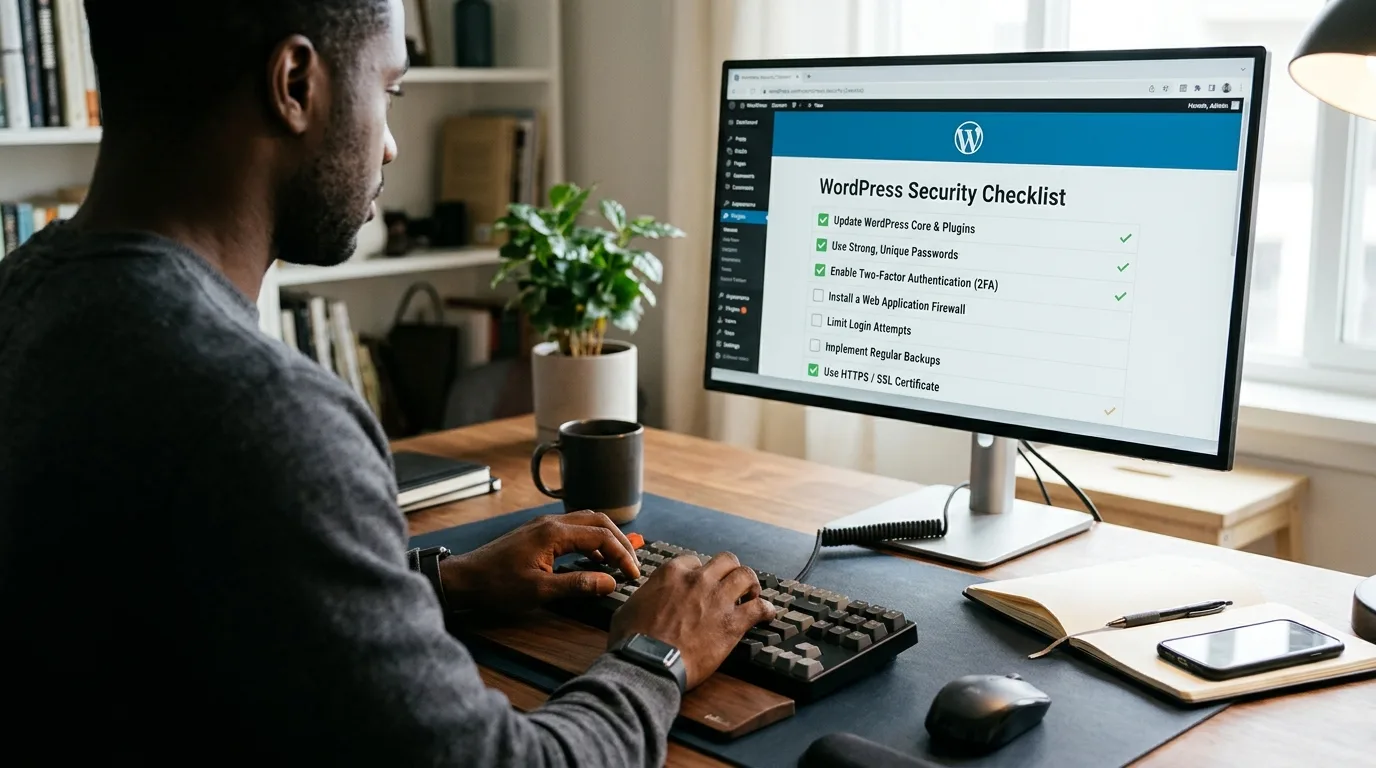
Use this 12-step checklist as a realistic starting point for your WordPress website.
1. Keep WordPress Core Updated
WordPress updates can include security fixes, compatibility improvements and new features.
From your dashboard, review Dashboard > Updates and check the available WordPress core release.
Before major upgrades:
- Create a verified backup.
- Check compatibility with essential themes and plugins.
- Consider testing on a staging environment.
- Confirm the website still works after updating.
Don't delay important security releases unnecessarily, but avoid updating a critical business site without a recovery plan.
2. Update Plugins and Themes
Plugins and themes add useful functionality, but outdated software can increase risk.
Review installed items regularly and:
- Apply relevant security updates.
- Remove unused plugins you no longer need.
- Delete abandoned themes you do not plan to maintain.
- Confirm that software is compatible with your WordPress version.
- Review any errors after upgrading.
Remember that deactivated plugins can still contain files on your server. If you do not need an extension, removing it is usually better than leaving it indefinitely.
3. Use Strong, Unique Passwords
Your WordPress administrator password protects more than access to blog posts. An administrator may be able to change site code, manage users and install plugins.
A safer password should be:
- Long and difficult to guess.
- Unique to that website.
- Stored in a reputable password manager.
- Never shared through unprotected chat messages.
Avoid using your company name, domain name or personal details as a password.
If more than one person needs access, give each person a separate account rather than sharing the administrator login.
4. Enable Two-Factor Authentication
Two-factor authentication (2FA) adds an additional verification step beyond the password.
Depending on your setup, this may use an authenticator application, security key or another supported method.
Start with:
- Administrator accounts.
- Store managers.
- Other users with access to sensitive functions.
Keep recovery codes somewhere secure so losing your phone does not lock you out completely.
5. Give Users Only the Access They Need
WordPress supports different user roles, such as Administrator, Editor, Author, Contributor and Subscriber.
Not everyone who publishes an article needs full administrator access.
For example:
- Give an article writer an appropriate content role.
- Reserve administrator permissions for trusted site managers.
- Review former employees' or contractors' accounts promptly.
- Avoid keeping unused administrator accounts active.
This principle is called least privilege: users should have only the permissions required for their tasks.
6. Create Reliable Backups—and Test Restores
Backups protect against more than cyberattacks. They also help after accidental deletion, failed updates or hardware problems.
Your backup plan should cover:
- WordPress files.
- Themes and plugins.
- Uploaded media.
- Database content.
Store at least one backup outside the live website environment. Protect backups from unauthorised access and consider encryption where appropriate.
A backup has limited value if you don't know whether it can be restored. Periodically test restoration in a safe environment.
For a regularly updated store, consider how frequently orders and product data change when choosing a backup schedule.
7. Use HTTPS Throughout the Website
HTTPS helps encrypt the connection between visitors and your website.
Verify that:
- Your SSL certificate is valid for the website address.
- Visitors reach your preferred HTTPS URL.
- Pages do not contain unresolved mixed-content issues.
- Logins and checkout pages work correctly over HTTPS.
HTTPS is essential, but it does not replace WordPress updates, access controls or malware protection.
8. Choose Plugins and Themes from Trustworthy Sources
Be cautious about downloading “free premium” or modified commercial plugins from unknown websites.
These packages may include malicious code or outdated components.
Before installing any plugin:
- Check the publisher and update history.
- Review compatibility information.
- Read support reports and recent feedback.
- Make sure the plugin serves a real need.
- Keep a backup before significant changes.
An impressive feature list is not a substitute for trustworthy software maintenance.
9. Protect the Login Process
Automated login attempts are a common type of unwanted website activity.
Practical protections may include:
- Strong passwords and 2FA.
- Reasonable login rate limits.
- Security monitoring and alerts.
- Removing unnecessary accounts.
- Checking for suspicious sign-in patterns.
A security plugin or host-level tool may help, but configuration matters. Extremely aggressive blocking can also lock out legitimate customers or staff.
Do not rely on changing the `/wp-admin` address as your only security measure.
10. Review Hosting and File Access
WordPress security also depends on the server and hosting account.
Check that you:
- Use supported PHP and other necessary software versions.
- Prefer secure connections such as SFTP or supported encrypted file access.
- Give file and folder permissions only as broadly as needed.
- Protect private configuration files and backups.
- Avoid exposing database exports in public directories.
Never set every website file or folder to be writable by everyone just to fix an error. That can create serious security problems.
11. Monitor for Changes and Warning Signs
You do not need to examine server logs every hour, but you should notice unusual activity early.
Watch for:
- Unexpected new administrator accounts.
- Unrecognised plugin installations.
- Website redirects to unfamiliar pages.
- Spam posts or strange content changes.
- Security warnings from browsers or search engines.
- Unexplained account lockouts.
Review alerts carefully. Some warnings are false positives, while others need urgent investigation.
If you suspect compromise, preserve relevant evidence and change affected credentials using a trusted device.
12. Prepare a Simple Incident Recovery Plan
A recovery plan does not need to be complicated to be useful.
At minimum, know:
- Who is responsible for the website.
- Who can access hosting and domain settings.
- Where clean backups are stored.
- How to contact your developer or hosting provider.
- How to put the website into an appropriate maintenance state.
- How customer communications and data issues will be handled.
If a site is compromised, do not immediately restore a backup without investigating the cause. Otherwise, the same vulnerable plugin or stolen credential may allow the problem to return.
A Quick Weekly and Monthly Routine
Weekly
- Review available updates.
- Confirm that backups are running.
- Check any security alerts.
- Test the homepage and a key customer journey.
Monthly
- Review administrator and staff accounts.
- Remove unnecessary extensions.
- Check login and recovery details.
- Confirm you can access a recent backup.
- Review whether the website has outgrown its hosting resources.
For an active online store or frequently updated site, some checks may need to happen more often.
Frequently Asked Questions
Is WordPress secure enough for a business website?
WordPress can support business websites securely when the installation, plugins, access controls and hosting environment are properly maintained.
Do I need a paid security plugin?
Not always. Many security practices are built into WordPress or available through hosting tools and reputable free software. Choose features based on your actual needs.
Will an SSL certificate stop hackers?
No. HTTPS protects connection traffic, but vulnerabilities, weak passwords and malicious plugins can still cause problems.
Should every staff member have an administrator account?
No. Give each person only the permissions required for their responsibilities.
Save This WordPress Security Checklist
- [ ] WordPress updated.
- [ ] Themes and plugins reviewed.
- [ ] Unique, strong passwords used.
- [ ] 2FA enabled for important users.
- [ ] User roles checked.
- [ ] Backups verified.
- [ ] HTTPS working.
- [ ] Untrusted software avoided.
- [ ] Login protection in place.
- [ ] Hosting access secured.
- [ ] Website activity monitored.
- [ ] Recovery plan documented.
WordPress security is a routine, not a once-a-year installation task. Small, consistent actions can protect your time, your customers and your online reputation.
If you're building or expanding your website, start with hosting suited to the project. Compare WordPress Hosting at Intek Host, and browse our Blog & Guides for more practical website advice.
*Further reading: Official WordPress hardening guide.*