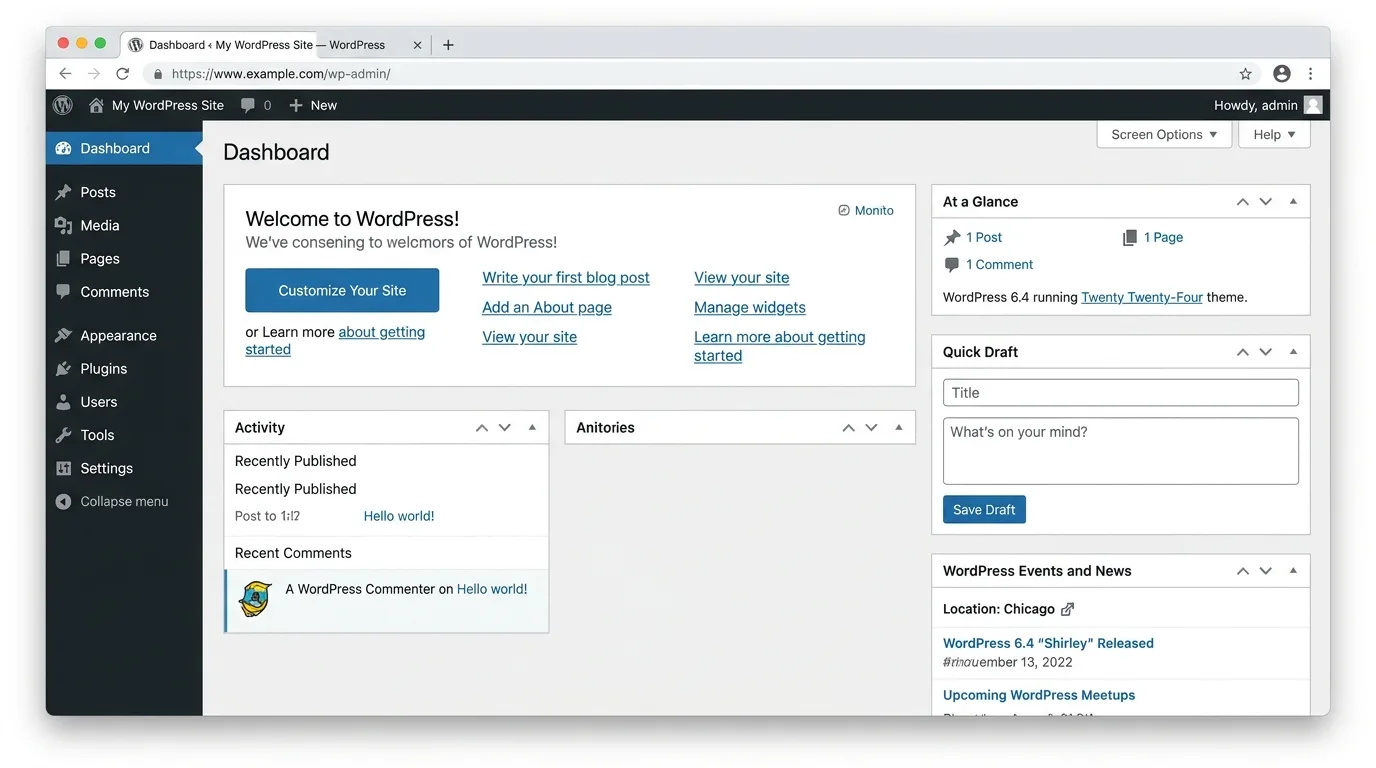
Most WordPress website owners eventually need to open the WordPress administration area to edit pages, publish posts, install updates or manage settings.
The familiar login address is often simple, but there are several practical ways to reach the dashboard depending on how the website was set up.
Only sign in through a website and account you are authorised to manage. Never enter your password into a login page reached through a suspicious message or unknown link.
Method 1: Add /wp-admin to your domain
The most common method is to type your website address followed by /wp-admin.
For example:
yourwebsite.com/wp-admin
If you are not already signed in, WordPress normally sends you to the login screen. After a successful login, you are taken into the Dashboard.
This is usually the easiest address to remember.
Method 2: Use /wp-login.php
You can also go directly to the standard WordPress login file:
yourwebsite.com/wp-login.php
This usually opens the same login screen you would reach through /wp-admin.
If your website uses a security plugin that changes the default login URL, however, the standard address may no longer work. In that case, use the custom login address configured for that website.
Method 3: Use a saved browser bookmark
Once you have confirmed the correct login page, save it as a bookmark in your browser.
This is especially useful when:
- you manage more than one website
- a security plugin uses a custom login URL
- the WordPress installation is inside a subfolder
- you do not want to type the address every time
Name the bookmark clearly, for example Company Website – WordPress Admin.
Do not save the actual password in a shared browser profile or on a public computer.
Method 4: Follow the login link from your hosting tools
Some hosting environments provide a WordPress-management or application area with a shortcut to the WordPress administration page.
The exact wording depends on the hosting setup, but it may appear as a WordPress management, application-management or login action.
This can be convenient when you have forgotten the exact site URL, but you should still confirm that you are using your real hosting account before following any administrative link.
Method 5: Use the correct URL when WordPress is in a subfolder
Not every WordPress website is installed directly at the root of the domain.
For example, if WordPress is installed at:
yourwebsite.com/blog
then the administration address may be:
yourwebsite.com/blog/wp-admin
Similarly, a staging installation may have a different address from the live website.
If /wp-admin on the main domain opens the wrong application or gives a 404 error, confirm where WordPress is actually installed.
What if the login page does not open?
A missing login screen does not always mean WordPress is broken.
Check these possibilities:
Confirm the domain is loading
Open the normal website first. If the whole domain is unavailable, the issue may be DNS, hosting, SSL or a wider website problem rather than the login page itself.
Check the exact address
Make sure there are no typing mistakes in the domain, subfolder or login path.
Consider a custom login URL
Security tools can hide the default WordPress login path. If someone configured a custom address, use that address instead of repeatedly guessing paths.
Clear a redirect problem carefully
If the login page keeps sending you to the wrong domain or to an old staging URL, WordPress may have incorrect site-address settings or a redirect rule may be involved.
Avoid changing database values blindly. If the site is important and you are unsure, make a backup and get technical help.
What if you forgot the password?
On a standard WordPress login page, use Lost your password? and follow the reset instructions sent to the email address connected to the account.
If you no longer have access to that email address, an authorised administrator or hosting-support process may be needed to restore access.
Do not create unofficial backdoor administrator accounts or upload unknown scripts to regain entry. Those shortcuts can create a serious security problem.
Improve WordPress admin security
The administration area controls a large part of your website, so protect it properly.
Good habits include:
- use a strong, unique password
- avoid sharing one administrator account among many people
- give users only the access level they need
- keep WordPress core, themes and plugins updated
- remove unused plugins and themes when appropriate
- keep reliable backups
- use HTTPS
- enable two-factor authentication when your security setup supports it
- be cautious with unexpected password-reset or login-alert emails
Administrator, Editor or another role?
Not everybody who works on a website needs full Administrator access.
An Administrator can make major changes to a WordPress installation. An Editor may be enough for someone who mainly manages pages and posts. Other roles provide even narrower permissions.
Using the least access necessary reduces the impact of mistakes or a compromised account.
The quickest option
For most standard installations, start with:
yourwebsite.com/wp-admin
If that does not work, try the confirmed login URL for your installation or use the WordPress tools available through your hosting account.
If your WordPress website is hosted with Intek Host and you are unsure which login route applies, contact Intek Host with the domain name. Do not send your password in the message.