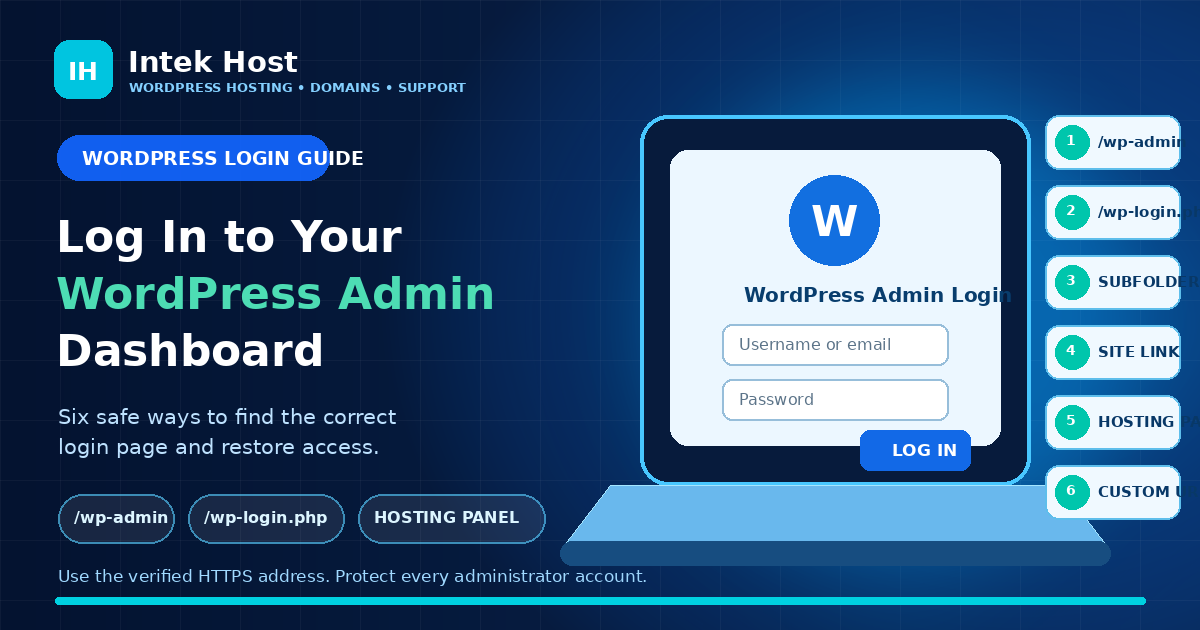
The WordPress admin dashboard is the private area where authorised users manage a website.
Depending on your role, you may use it to create pages and posts, upload images, moderate comments, manage users, install updates, change settings or maintain themes and plugins.
For most self-hosted WordPress websites, the quickest way to reach the dashboard is to add /wp-admin to the domain name. However, that is not the only possible route.
This guide explains six safe ways to find and open the correct login page, what to do when the usual address does not work, and how to recover authorised access.
This guide is for self-hosted WordPress websites, including sites hosted with Intek Host. A website built directly on WordPress.com uses a WordPress.com account and a different account-login process.
Before you try to log in
You normally need:
- The correct website address
- A WordPress username or the email address attached to your account
- The correct WordPress password
Your hosting-control-panel login is not always the same as your WordPress login.
The hosting account manages services such as files, databases, domains, backups and email. The WordPress account controls access to the website dashboard.
Some hosting tools provide a secure one-click route into WordPress, but you should not assume that the same password works for both systems.
Method 1: Add /wp-admin to your domain
For WordPress installed in the main folder of a domain, open:
https://yourdomain.com/wp-admin
Replace yourdomain.com with the real website address.
Examples:
https://example.com/wp-adminhttps://www.example.com/wp-adminhttps://shop.example.com/wp-admin
When you are not already signed in, WordPress normally redirects you to the login screen. After a successful login, it opens the administration area.
This is usually the easiest address to remember.
When /wp-admin may not work
The address may fail when:
- WordPress is installed in a subfolder
- A security plugin has changed the login URL
- The domain points to the wrong server
- WordPress has a redirect or configuration problem
- A firewall or security rule blocks the request
- The website is experiencing a critical error
The later sections explain what to check.
Method 2: Open /wp-login.php directly
WordPress also has a direct login file.
Open:
https://yourdomain.com/wp-login.php
This normally displays the same username-and-password screen used by /wp-admin.
The direct address can help when /wp-admin is redirecting unexpectedly or when you want to bookmark the login page itself.
Bookmark the verified page
Bookmark the HTTPS address from your own website.
Before entering credentials, check:
- The spelling of the domain
- That the address begins with
https:// - That the browser does not show a certificate warning
- That you did not arrive through a suspicious email or message
A fake page can copy the appearance of WordPress. Always confirm the address before entering a password.
Method 3: Include the WordPress installation folder
Not every WordPress website is installed in the main domain folder.
The installation may be inside a folder such as:
/blog/wordpress/site/newsite
In that case, include the folder in the login address.
Examples:
https://yourdomain.com/blog/wp-adminhttps://yourdomain.com/blog/wp-login.phphttps://yourdomain.com/wordpress/wp-admin
A WordPress installation on a subdomain uses the subdomain address:
https://blog.yourdomain.com/wp-adminhttps://members.yourdomain.com/wp-login.php
How to find the correct folder
Check:
- The installation confirmation
- Information supplied by your developer
- The website address shown in the hosting control panel
- The WordPress installation manager
- The folder containing
wp-admin,wp-contentandwp-includes
Do not move or rename WordPress folders merely because the login address is unclear. Changing files without a migration plan can break the website.
Method 4: Use a login link on the public website
Some WordPress themes, membership systems and plugins provide a login link or form on the public side of the website.
It may appear in:
- The main menu
- The footer
- A sidebar
- A member portal
- An account page
- A staff-only page
The link may be labelled:
- Log In
- Admin Login
- Staff Login
- My Account
- Member Login
- Website Dashboard
Selecting it may open the standard WordPress login screen or a customised login page.
Important limitation
A public login link is optional. Many professional websites deliberately do not display one.
When no login button is visible, try the verified /wp-admin or /wp-login.php address.
Also remember that a customer-account page may not be the WordPress administration dashboard. Online shops and membership websites can provide a front-end account area with limited features.
Method 5: Log in through your hosting control panel
Some hosting control panels include a WordPress management tool that can open the dashboard from an authenticated hosting session.
The wording may include:
- WordPress
- Manage WordPress
- WordPress Manager
- Applications
- Installed Applications
- Admin Login
- Log In to WordPress
This can be useful when:
- You have access to the hosting account
- The tool recognises the installation
- The login URL is difficult to remember
- The hosting platform supports secure one-click login
Intek Host’s WordPress installation process may present a button that opens the WordPress Admin Dashboard after installation. The exact option shown later can depend on how the site was installed and which management tools are available.
Use this route safely
- Open the official Intek Host client or hosting-control-panel address.
- Sign in to your own account.
- Select the correct hosting service.
- Open the WordPress management area.
- Choose the available admin-login option.
- Confirm that the final page belongs to your domain.
Do not use a control-panel link sent by an unknown person. Open the official portal yourself.
Method 6: Use the custom login URL
A website owner or security plugin may change the normal WordPress login address.
For example, a site may use:
https://yourdomain.com/team-login
That is only an example. The real path depends on the website’s configuration.
When a custom path is active:
/wp-login.phpmay return an error/wp-adminmay redirect elsewhere- The normal login page may appear unavailable
How to find a custom login URL
Check:
- The handover document from the developer
- Your password manager
- A saved browser bookmark
- The website administrator’s records
- The security-plugin settings
- Installation or maintenance notes
Ask the authorised website administrator or developer when you are unsure.
Changing the login URL can reduce unwanted requests to the standard page, but it is not a complete security system. The website still needs strong passwords, controlled user accounts, updates, HTTPS, backups and other protections.
Emergency access: WordPress Recovery Mode
Recovery Mode is not a normal daily login method.
WordPress may activate it when a plugin or theme causes a fatal error. It sends a special message to the website’s administration email address with a temporary recovery link.
The message may state that the site is experiencing a technical issue.
The link can allow an authorised administrator to enter a limited recovery session and investigate the failing plugin or theme.
Recovery Mode precautions
- Use only the link sent for your own website.
- Confirm the domain before entering credentials.
- The link expires.
- A new link may be sent if the error occurs again.
- Recovery Mode does not automatically repair every problem.
- Contact your hosting provider or developer when the cause is unclear.
Never forward a Recovery Mode link publicly. Treat it as sensitive access information.
What to do when you forget the password
The safest first option is WordPress’s built-in password recovery.
- Open the correct WordPress login page.
- Select Lost your password?
- Enter your username or account email.
- Check that email account for the reset message.
- Open the reset link.
- Create a strong, unique password.
- Return to the login page and sign in.
You can also open:
https://yourdomain.com/wp-login.php?action=lostpassword
Include the installation folder when WordPress is inside a subdirectory.
When the reset email does not arrive
Check:
- Spam or junk folders
- Whether you entered the correct account email
- Whether the website can send outgoing email
- Whether the domain’s email service is working
- Whether another administrator can update your account
- Whether the hosting provider can help verify the installation
Database, command-line and file-based password resets exist, but they should be handled by an experienced administrator. An incorrect database or file change can damage the website or expose the account.
How to recognise the real dashboard
After a successful login, WordPress normally opens an administration screen with a left-hand menu.
Depending on your permissions, it may include:
- Dashboard
- Posts
- Media
- Pages
- Comments
- Appearance
- Plugins
- Users
- Tools
- Settings
The exact options depend on:
- Your user role
- Installed plugins
- The active theme
- Whether the site uses WordPress Multisite
- Custom changes made by the developer
Not every user should see every setting.
Why users see different dashboard menus
WordPress uses roles and capabilities.
Common roles include:
- Administrator: Access to administration features within one website
- Editor: Can publish and manage posts, including other users’ posts
- Author: Can publish and manage their own posts
- Contributor: Can write and manage their own posts but cannot publish
- Subscriber: Can mainly manage their profile
- Super Admin: Used for network-level features in WordPress Multisite
When you can log in but cannot see Plugins, Themes, Users or Settings, your account may not have administrator permission.
Do not request full administrator access unless your work genuinely requires it. Giving every staff member complete control increases the risk of accidental or unauthorised changes.
Common WordPress login problems
“Invalid username” or “incorrect password”
Check that:
- The username or email belongs to that WordPress installation
- Caps Lock is not affecting the password
- You are not using the hosting-account password
- A password manager has not filled old details
- You are opening the correct website
Use Lost your password? instead of repeatedly guessing.
The page keeps refreshing
WordPress uses browser cookies for login sessions.
Try:
- Clearing cookies for the website
- Clearing the browser cache
- Closing and reopening the browser
- Testing in a private window
- Confirming that cookies are enabled
- Checking that the address consistently uses the same domain and HTTPS version
The page redirects to another domain
This can happen when:
- The WordPress Address or Site Address is wrong
- The website was recently migrated
- DNS still points to an old server
- A redirect plugin or server rule is misconfigured
- The site switches between
wwwand non-www - HTTP and HTTPS settings disagree
Do not enter credentials on an unexpected domain. Ask the hosting provider or developer to review the configuration.
/wp-admin shows a 404 page
Possible causes include:
- WordPress is installed in a subfolder
- The site uses a custom login URL
- WordPress files are incomplete
- A security tool hides the default route
- The request reaches the wrong server
Try the confirmed installation path or inspect the installation through the hosting control panel.
You see “There has been a critical error”
A plugin, theme or custom code may be causing a fatal error.
Check the administration email for a Recovery Mode message. When there is no valid recovery link, contact the hosting provider or developer instead of randomly deleting files.
You are logged in but cannot manage the website
Your account may have a limited role.
Ask the authorised administrator to review your permissions. Do not create another administrator account merely to bypass the access policy.
A firewall blocks the login
A website firewall, security plugin or server rule may block repeated attempts, unfamiliar locations or certain networks.
Wait before trying again, check for a security notification and contact the authorised administrator. Repeated attempts may extend the block.
Safe login practices
Use a unique account for each person
Do not let a whole team share one administrator username and password.
Individual accounts improve accountability and make it possible to remove one person’s access without changing everyone’s credentials.
Use the lowest suitable role
A content writer may need an Author or Editor account rather than full Administrator access.
Limit high-level accounts to people responsible for website configuration and maintenance.
Use a strong, unique password
Do not reuse a password from email, social media or another website.
A password manager can generate and store a long password.
Enable multi-factor authentication when available
A suitable security solution or identity provider can add another verification step.
Test the recovery procedure before depending on it.
Keep the login page on HTTPS
Do not submit a WordPress password over an insecure HTTP connection.
The login page should use a valid certificate without browser warnings.
Keep WordPress, plugins and themes updated
Old software may contain known vulnerabilities.
Take a backup and follow a controlled update process, especially on business-critical websites.
Remove unused accounts
Disable or remove accounts belonging to former staff, previous developers or people who no longer need access.
Transfer required content before deleting an account.
Log out on shared devices
Do not save an administrator password on a public or shared computer.
Log out after use and remove browsing data where appropriate.
Quick login checklist
- Confirm the correct domain.
- Try
https://yourdomain.com/wp-admin. - Try
https://yourdomain.com/wp-login.php. - Add the installation folder when WordPress is in a subdirectory.
- Check for an official front-end login link.
- Open the WordPress tool inside your authenticated hosting panel.
- Use the recorded custom login URL when one exists.
- Select Lost your password? when the credentials are wrong.
- Check the administration email for Recovery Mode after a critical error.
- Contact the authorised administrator or hosting provider when the route remains unclear.
Final thoughts
Most WordPress websites can be accessed through /wp-admin or /wp-login.php.
The correct address changes when WordPress is installed in a subfolder, placed on a subdomain or configured with a custom login route. Some websites also offer a front-end login link, while supported hosting tools may provide secure control-panel access.
Recovery Mode and password-reset tools are for restoring authorised access, not bypassing website security.
Keep the verified login URL in a password manager, use individual accounts and protect administrator access with strong security practices.
Need help accessing your WordPress website?
Intek Host provides WordPress hosting and website-support resources for customers. When requesting help, provide the domain name, the error message and the login method already tried—but never send your password through an unsecured message.
Explore Intek Host WordPress Hosting or contact the Intek Host team.